Handling loading, error, and success states in Flutter using Riverpod is something every developer struggles with — especially when APIs fail, data loads slowly, or UI gets stuck in a spinner.
In this guide, you'll learn how to properly manage these states using real-world patterns, so your app stays responsive and predictable.
At some point, every Flutter developer ships a screen that gets stuck on a loading spinner with no error message. It looks fine in development — until it breaks in production.
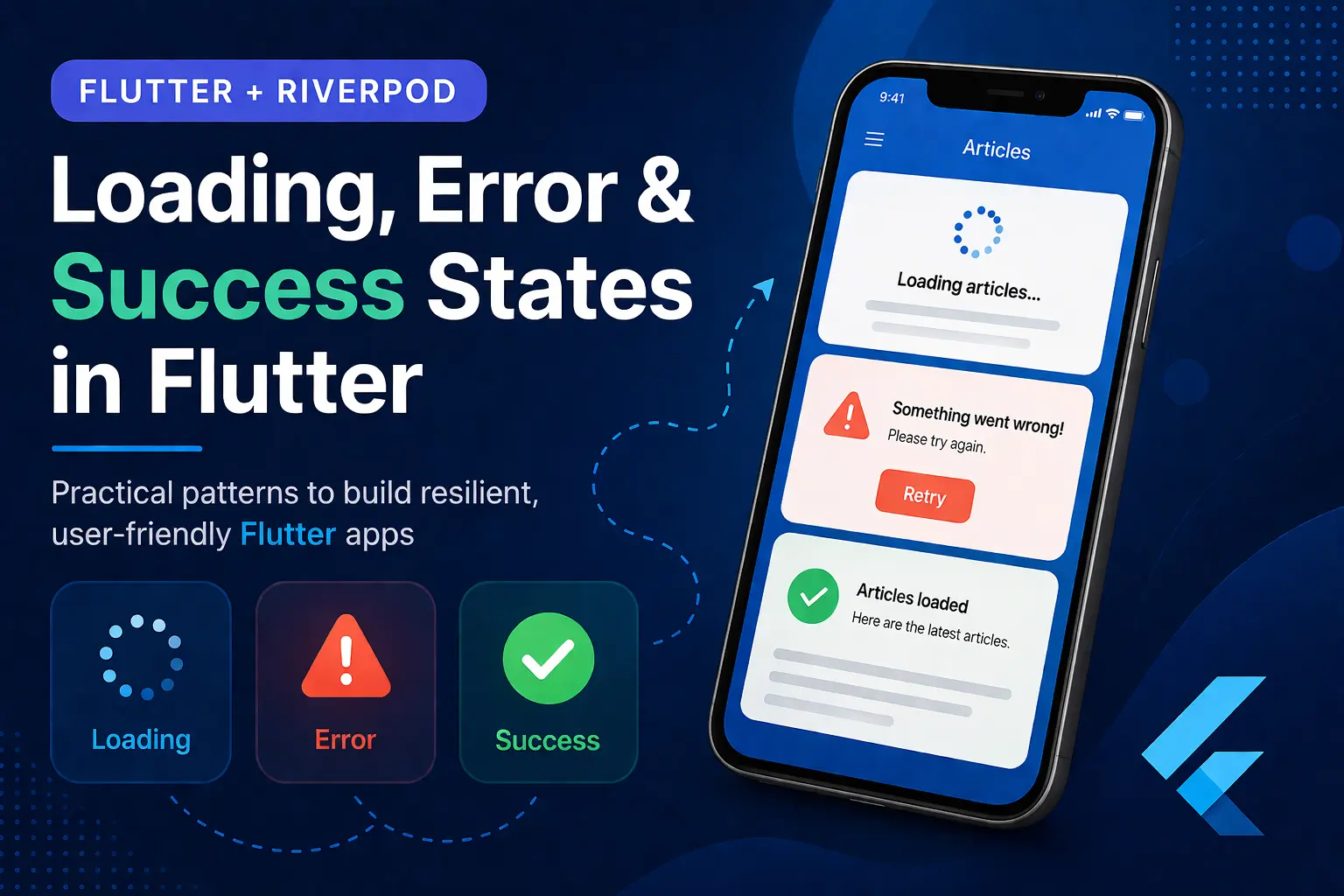
The Three States You Always Need
Every screen that fetches data has to handle three states.
- Loading — request in flight, show a spinner or skeleton
- Error — request failed, show a message with a retry path
- Success — request returned data
Plus a fourth implicit one: empty — request succeeded but returned nothing.
Skip any of these and you ship "infinite spinner" bugs and "blank screen" bugs. I've shipped both. Both are embarrassing.
Common Mistakes Developers Make
Listing these up front so you can scan and check your own code. I've made every one in production.
1. Showing the loader forever. The API throws, the catch block is missing, and isLoading stays true until the user kills the app.
// ❌ BAD: no catch — loading never clears on error
Future<void> loadProducts() async {
  state = state.copyWith(isLoading: true);
  final products = await _repository.getProducts();
  state = state.copyWith(isLoading: false, products: products);
}
2. Ignoring the error state. Catch block exists but only logs to console. User sees stale data, frozen, no feedback.
3. Mixing loading and success. Showing the success UI while isLoading is still true creates flicker — and bugs like "button enabled but data not ready."
4. Not clearing previous errors. User retries after fixing their connection, but the old error message is still on screen because nothing reset it.
5. Showing raw error messages. DioException [DioExceptionType.connectionTimeout] is not a user-facing string. It's a stacktrace.
6. One errorMessage for everything. Page-load failures and "add to cart" failures need different UI. A single error field forces awkward compromises.
The rest of this article fixes these — by structuring your state, notifier, and UI consistently.
The State Class Pattern
Start with a state class. Always use copyWith. The trick most tutorials miss is making error fields intentionally nullable so passing null clears them.
class ProductState {
  final bool isLoading;
  final String? errorMessage;
  final List<Product> products;
  final bool isLoadingMore;

  const ProductState({
    this.isLoading = false,
    this.errorMessage,
    this.products = const [],
    this.isLoadingMore = false,
  });

  ProductState copyWith({
    bool? isLoading,
    String? errorMessage,
    List<Product>? products,
    bool? isLoadingMore,
  }) {
    return ProductState(
      isLoading: isLoading ?? this.isLoading,
      errorMessage: errorMessage,  // intentionally nullable — pass null to clear
      products: products ?? this.products,
      isLoadingMore: isLoadingMore ?? this.isLoadingMore,
    );
  }
}
Look closely at that one line: errorMessage: errorMessage. Not errorMessage ?? this.errorMessage.
Why this matters: the ?? version keeps old errors stuck. When you pass null to clear an error before a retry, null falls through to this.errorMessage and the old message stays. The bare errorMessage: errorMessage version actually lets null through.
Every retry deserves a clean slate. This pattern gives you one.
Why StateNotifier instead of AsyncValue?
Riverpod gives you two ways to model async state: StateNotifier<MyState> (with manual isLoading flags) and AsyncValue<T> (which has loading/error/data baked in). Both work. I reach for StateNotifier whenever a screen has more state than just "the data" — pagination flags, last-search-query, success messages, multiple coexisting errors. AsyncValue is cleaner when the screen really is just fetch one thing, render or error. The patterns in this article use StateNotifier because real production screens almost always need the extra fields.
The Notifier Pattern
Every async action follows the same shape:
- Set
isLoading = true, clear previous error - Try the API call
- On success → loading off, data in
- On failure → loading off, error in
class ProductNotifier extends StateNotifier<ProductState> {
  final ProductRepository _repository;

  ProductNotifier(this._repository) : super(const ProductState());

  Future<void> loadProducts() async {
    state = state.copyWith(isLoading: true, errorMessage: null);

    try {
      final products = await _repository.getProducts();
      state = state.copyWith(
        isLoading: false,
        products: products,
        errorMessage: null,
      );
    } catch (e) {
      state = state.copyWith(
        isLoading: false,
        errorMessage: 'Failed to load products. Please try again.',
      );
    }
  }
}

final productNotifierProvider =
    StateNotifierProvider<ProductNotifier, ProductState>((ref) {
  final repository = ref.read(productRepositoryProvider);
  return ProductNotifier(repository);
});
The order matters. Loading is set before the try block, and the error is cleared at the same time. On a retry after an error, the UI immediately shows the spinner instead of the old error hanging around.
In every app I've worked on, this is the single most copy-pasted method. Get the shape right once and the rest of the codebase follows.
One race condition to know about: if loadProducts fires twice in quick succession (user double-taps refresh), the second response overwrites the first regardless of which actually arrived first. For most screens this is fine — the second result is fresher. If you need stricter ordering, add a int _requestId counter and ignore responses whose ID is older than the latest.
Wiring the UI
The build method follows a strict order: loading → error → empty → success. Get this wrong and you ship bugs like "no data" appearing while still loading.
class ProductScreen extends ConsumerStatefulWidget {
  const ProductScreen({super.key});

  @override
  ConsumerState<ProductScreen> createState() => _ProductScreenState();
}

class _ProductScreenState extends ConsumerState<ProductScreen> {
  @override
  void initState() {
    super.initState();
    WidgetsBinding.instance.addPostFrameCallback((_) {
      ref.read(productNotifierProvider.notifier).loadProducts();
    });
  }

  @override
  Widget build(BuildContext context) {
    final state = ref.watch(productNotifierProvider);
    return Scaffold(
      appBar: AppBar(title: const Text('Products')),
      body: _buildBody(state),
    );
  }

  Widget _buildBody(ProductState state) {
    if (state.isLoading) {
      return const Center(child: CircularProgressIndicator());
    }

    if (state.errorMessage != null && state.products.isEmpty) {
      return Center(
        child: Column(
          mainAxisAlignment: MainAxisAlignment.center,
          children: [
            Text(state.errorMessage!),
            const SizedBox(height: 16),
            ElevatedButton(
              onPressed: () {
                ref.read(productNotifierProvider.notifier).loadProducts();
              },
              child: const Text('Retry'),
            ),
          ],
        ),
      );
    }

    if (state.products.isEmpty) {
      return const Center(child: Text('No products found'));
    }

    return ListView.builder(
      itemCount: state.products.length,
      itemBuilder: (context, index) {
        final product = state.products[index];
        return ListTile(
          title: Text(product.name),
          subtitle: Text('\$${product.price.toStringAsFixed(2)}'),
        );
      },
    );
  }
}
Two subtleties worth noting:
- The error check is
errorMessage != null && products.isEmpty. Only show the full-screen error when there's nothing to show. If stale data exists and a new request fails, keep the data and surface the error differently (covered later under blocking vs non-blocking errors). addPostFrameCallbackfor the initial load avoids "modify state during build" warnings. This is the cleanest place to trigger first fetches.
Form Submissions Are a Different Shape
A "load this list" screen and a "submit this form" screen need different state shapes. Forms care about:
- Loading (request in flight)
- Success message (transient — show, then clear)
- Error message (transient or persistent)
- Whether the action completed (for navigation)
The state class below packs all of this in. Note the same intentional-null pattern from earlier — both errorMessage and successMessage need to be passable as null to clear them between actions.
class AddToCartState {
  final bool isLoading;
  final bool isSuccess;
  final String? errorMessage;
  final String? successMessage;

  const AddToCartState({
    this.isLoading = false,
    this.isSuccess = false,
    this.errorMessage,
    this.successMessage,
  });

  AddToCartState copyWith({
    bool? isLoading,
    bool? isSuccess,
    String? errorMessage,
    String? successMessage,
  }) {
    return AddToCartState(
      isLoading: isLoading ?? this.isLoading,
      isSuccess: isSuccess ?? this.isSuccess,
      errorMessage: errorMessage,
      successMessage: successMessage,
    );
  }
}

class AddToCartNotifier extends StateNotifier<AddToCartState> {
  final CartRepository _cartRepository;

  AddToCartNotifier(this._cartRepository) : super(const AddToCartState());

  Future<bool> addToCart({required String productId, required int quantity}) async {
    state = state.copyWith(
      isLoading: true,
      errorMessage: null,
      successMessage: null,
      isSuccess: false,
    );

    try {
      final response = await _cartRepository.addItem(
        productId: productId,
        quantity: quantity,
      );

      if (response.success) {
        state = state.copyWith(
          isLoading: false,
          isSuccess: true,
          successMessage: 'Item added to cart!',
        );
        return true;
      }

      state = state.copyWith(
        isLoading: false,
        errorMessage: response.message ?? 'Failed to add item',
      );
      return false;
    } catch (e) {
      state = state.copyWith(
        isLoading: false,
        errorMessage: 'Something went wrong. Please try again.',
      );
      return false;
    }
  }

  void clearMessages() {
    state = state.copyWith(errorMessage: null, successMessage: null);
  }
}
For the UI side, you don't want success/error messages baked into the screen body — they should be snackbars that flash and disappear. That's ref.listen's job. The screen below shows the button-with-inline-spinner pattern and uses ref.listen to fire snackbars off state changes without rebuilding the whole widget tree.
class CartScreen extends ConsumerWidget {
  const CartScreen({super.key});

  @override
  Widget build(BuildContext context, WidgetRef ref) {
    final cartState = ref.watch(addToCartProvider);

    ref.listen<AddToCartState>(addToCartProvider, (previous, current) {
      if (current.successMessage != null) {
        ScaffoldMessenger.of(context).showSnackBar(
          SnackBar(
            content: Text(current.successMessage!),
            backgroundColor: Colors.green,
          ),
        );
      }
      if (current.errorMessage != null) {
        ScaffoldMessenger.of(context).showSnackBar(
          SnackBar(
            content: Text(current.errorMessage!),
            backgroundColor: Colors.red,
          ),
        );
      }
    });

    return Scaffold(
      body: Center(
        child: ElevatedButton(
          onPressed: cartState.isLoading
              ? null
              : () {
                  ref.read(addToCartProvider.notifier).addToCart(
                        productId: 'product_123',
                        quantity: 1,
                      );
                },
          child: cartState.isLoading
              ? const SizedBox(
                  width: 20,
                  height: 20,
                  child: CircularProgressIndicator(strokeWidth: 2),
                )
              : const Text('Add to Cart'),
        ),
      ),
    );
  }
}
Three rules I follow for any form action:
- Disable the button while loading.
onPressed: state.isLoading ? null : () => .... Stops users from spam-tapping. - Use
ref.listenfor snackbars and navigation, notref.watch. Watch rebuilds; listen reacts. A snackbar on watch re-fires on every rebuild. - Replace button content with a small inline spinner, don't show a separate overlay. Layout doesn't jump.
This same shape applies to login forms, checkout submissions, profile updates — anything where the user taps and waits for confirmation.
Search With Debounce: When Loading IS the State
Search has a specific challenge. You can't fire an API call on every keystroke. You also can't wait for the user to submit. Debounce sits between.
class SearchState {
  final bool isLoading;
  final bool isLoadingMore;
  final String? errorMessage;
  final List<Product> results;
  final String currentQuery;
  final bool hasMoreResults;
  final int totalCount;

  const SearchState({
    this.isLoading = false,
    this.isLoadingMore = false,
    this.errorMessage,
    this.results = const [],
    this.currentQuery = '',
    this.hasMoreResults = false,
    this.totalCount = 0,
  });

  SearchState copyWith({
    bool? isLoading,
    bool? isLoadingMore,
    String? errorMessage,
    List<Product>? results,
    String? currentQuery,
    bool? hasMoreResults,
    int? totalCount,
  }) {
    return SearchState(
      isLoading: isLoading ?? this.isLoading,
      isLoadingMore: isLoadingMore ?? this.isLoadingMore,
      errorMessage: errorMessage,
      results: results ?? this.results,
      currentQuery: currentQuery ?? this.currentQuery,
      hasMoreResults: hasMoreResults ?? this.hasMoreResults,
      totalCount: totalCount ?? this.totalCount,
    );
  }
}

class SearchNotifier extends StateNotifier<SearchState> {
  final SearchRepository _repository;
  static const int _pageSize = 10;
  static const _debounceDuration = Duration(seconds: 1);
  Timer? _debounce;
  String? _previousQuery;

  SearchNotifier(this._repository) : super(const SearchState());

  void onQueryChanged(String query) {
    _debounce?.cancel();

    final trimmed = query.trim();
    if (trimmed.length <= 2) return;        // minimum 3 chars
    if (trimmed == _previousQuery) return;  // skip same query

    _debounce = Timer(_debounceDuration, () {
      _previousQuery = trimmed;
      _search(trimmed);
    });
  }

  Future<void> _search(String query) async {
    state = state.copyWith(
      isLoading: true,
      errorMessage: null,
      currentQuery: query,
    );

    try {
      final response = await _repository.search(
        query: query,
        limit: _pageSize,
        offset: 0,
      );

      if (response.success && response.data != null) {
        state = state.copyWith(
          isLoading: false,
          results: response.data!.items,
          totalCount: response.data!.totalCount,
          hasMoreResults: response.data!.items.length < response.data!.totalCount,
        );
      } else {
        state = state.copyWith(
          isLoading: false,
          errorMessage: response.message ?? 'Search failed',
        );
      }
    } catch (e) {
      state = state.copyWith(
        isLoading: false,
        errorMessage: 'Search failed. Please try again.',
      );
    }
  }

  @override
  void dispose() {
    _debounce?.cancel();
    super.dispose();
  }
}
What's worth pointing out:
- Debounce is a state transition, not just an optimization. Between keystroke and request, the screen is in a "user is typing" state — neither loading nor showing fresh results. The 3-character minimum and
_previousQueryguard prevent firing duplicate or trivial queries. _debounce?.cancel()indisposematters. Navigate away mid-typing and a stale request would otherwise fire after the screen is gone.- Search results often relate to other state. Cart quantity on a product card, for instance. If your search and cart both touch the same product data, keeping them in sync across providers is its own pattern worth understanding.
Pagination: Loading vs LoadingMore
Pagination needs a different loading flag. The first load shows a full-screen spinner. Loading the next page shows a small spinner at the bottom of the existing list. Same provider, different UI.
Future<void> loadMore() async {
  if (state.isLoadingMore) return;  // prevent duplicate calls

  state = state.copyWith(isLoadingMore: true);

  try {
    final moreProducts = await _repository.getProducts(offset: state.products.length);
    state = state.copyWith(
      isLoadingMore: false,
      products: [...state.products, ...moreProducts],
    );
  } catch (e) {
    state = state.copyWith(
      isLoadingMore: false,
      errorMessage: 'Failed to load more products.',
    );
  }
}
The list builder accommodates the loader as the last item:
return ListView.builder(
  itemCount: state.products.length + (state.isLoadingMore ? 1 : 0),
  itemBuilder: (context, index) {
    if (index == state.products.length) {
      return const Center(
        child: Padding(
          padding: EdgeInsets.all(16),
          child: CircularProgressIndicator(),
        ),
      );
    }
    final product = state.products[index];
    return ListTile(
      title: Text(product.name),
      subtitle: Text('\$${product.price.toStringAsFixed(2)}'),
    );
  },
);
Why two flags instead of one:
isLoadingcontrols full-screen replacement (initial load, retry from empty)isLoadingMoreis additive — list stays visible, spinner at the bottom
Combine them and you're forced to choose between "hide the list while paginating" (jarring) and "show stale data with no indicator" (looks broken). Two flags is the easy way out.
Blocking vs Non-Blocking Errors
Not all errors deserve a full-screen takeover. The line:
- Blocking — the user can't do anything useful with this screen until you fix it. Full-screen error with retry. Examples: list failed to load, no internet on first launch.
- Non-blocking — the page is fine, but a specific action failed. Show a snackbar; don't disrupt the rest of the UI. Examples: "add to cart" failed, "save profile" failed.
Treating both the same is what makes apps feel clunky. A 500 on "add to cart" shouldn't blow away the product list the user was browsing.
class OrderState {
  final bool isLoading;
  final String? errorMessage;       // blocking — full screen
  final String? toastError;         // non-blocking — snackbar
  final List<Order> orders;
  final bool isPlacingOrder;
  final bool orderPlaced;

  const OrderState({
    this.isLoading = false,
    this.errorMessage,
    this.toastError,
    this.orders = const [],
    this.isPlacingOrder = false,
    this.orderPlaced = false,
  });

  // copyWith elided — same intentional-null pattern as before
}
How it gets wired up:
- Loading the orders list fails → set
errorMessage(full-screen retry). - Placing an order fails → set
toastError(snackbar, list stays). - Order succeeds → set
orderPlaced = trueand navigate viaref.listen.
The UI reads both signals separately:
ref.listen<OrderState>(orderProvider, (previous, current) {
  if (current.toastError != null) {
    ScaffoldMessenger.of(context).showSnackBar(
      SnackBar(content: Text(current.toastError!), backgroundColor: Colors.red),
    );
  }
  if (current.orderPlaced) {
    Navigator.pushNamed(context, '/order-success');
  }
});
If your app talks to an authenticated API, a 401 mid-action is its own special case — not really blocking the screen, but you do need to refresh the token before retrying. That's where state handling meets the network layer, and I covered refreshing tokens cleanly with Dio interceptors separately.
Key Takeaways
After several apps, this is the checklist I run for every new screen.
State class
- Use
copyWithwith intentionally-nullable error fields (nullclears them). - Separate
isLoadingandisLoadingMoreif the screen paginates. - Separate
errorMessageandtoastErrorif it has both blocking and non-blocking failures.
Notifier
- Set loading = true and clear error in the same line, before the try.
- Always wrap the API call in try/catch.
- Set loading = false in both branches.
- Translate raw exceptions to user-readable strings — never show
DioExceptionto the UI.
UI
ref.watch()for state that drives rebuilds.ref.listen()for side effects: snackbars, navigation, analytics.ref.read()for one-shot actions: button taps,initStatecalls.- Build order: loading → error → empty → success.
- Disable buttons while their action is in flight.
- Replace button content with an inline spinner — no separate overlay.
Testing
- Notifiers are pure Dart classes. Test them with a fake repository and
expectcalls againststateafter each action. No widget tree, nopumpAndSettle. State patterns this clean are one of the biggest practical wins of MVVM-style separation.
The whole point is to make screens predictable. Once your team agrees on the shape, every new screen looks the same. Onboarding gets faster, bugs become easier to track, and "why isn't this loader stopping?" turns from a debug session into a quick state check.
If you're already structuring your API calls with a clean repository layer underneath, this state pattern slots in naturally. I wrote about organizing Dio with a repository abstraction as a follow-up to that.
FAQ
How to handle loading state in Flutter Riverpod?
Add an isLoading boolean to your state class and toggle it inside your StateNotifier. Set isLoading = true and clear any previous error before the API call, then set isLoading = false in both the success and catch branches. In the UI, use ref.watch(provider) and check state.isLoading first — show a CircularProgressIndicator or shimmer skeleton when it's true. The build order should always be: loading → error → empty → success.
What is AsyncValue vs StateNotifier?
AsyncValue<T> is Riverpod's built-in wrapper for "this is one piece of async data" — it has loading, error, and data states baked in and you pattern-match on them with .when(...). StateNotifier<MyState> is a manual approach where you build your own state class with isLoading, errorMessage, and any other fields you need. Use AsyncValue for simple fetch-and-render screens. Use StateNotifier when the screen has more state than just the data — pagination flags, form success messages, last-search-query, multiple coexisting errors. Production screens almost always need StateNotifier.
How to show error in Flutter UI?
Two patterns depending on the error type. Blocking errors (page failed to load) — store in errorMessage, render a full-screen error widget with a retry button when state.errorMessage != null && state.products.isEmpty. Non-blocking errors (an action failed but the page is fine) — store in a separate toastError field and listen for changes with ref.listen, then call ScaffoldMessenger.of(context).showSnackBar(...) to flash a snackbar. Never show raw exception strings like DioException [DioExceptionType.connectionTimeout] to users — translate them to friendly messages inside your repository or notifier.